
Document Management for Accounting: A Small Business Guide

Your receipts are in three places. Paper slips sit in a glove box. Vendor bills land in email. Bank statements download into a folder no one remembers to reconcile with the bookkeeping file. Then tax time, a loan application, or a sales tax question arrives, and the business suddenly needs proof. Not estimates. Not memory. Actual documents.
That's where most small businesses realize they don't have a document problem. They have a process problem.
Good document management for accounting fixes that. It gives every invoice, receipt, statement, contract, and payroll record one controlled path from arrival to storage to retrieval. That matters because accounting documents don't just need to exist. They need to be easy to find, linked to the right transaction, protected from the wrong eyes, and ready when a tax preparer, lender, auditor, or owner asks for them.
The shift from paper folders to digital systems changed more than storage. IRIS describes electronic document management as scanning paperwork and storing it digitally alongside native digital files, replacing paper filing with searchable, shareable, editable records in a way that supports modern accounting control and audit readiness (IRIS on accounting document management). For a small business, that shift isn't abstract. It's the difference between hunting and knowing.
Table of Contents
Beyond the Shoebox The Case for Digital Document Management - What changes when the system is digital - What good looks like in practice
Establishing Your Digital Intake System - Start with one doorway - Define intake rules your team can actually follow - Keep naming simple at intake - Your first 30 days
Building a Scalable Digital Filing Cabinet - Why folders break down - Document Naming Convention Comparison - Build the filing structure around retrieval
Integrating with QuickBooks Online and Xero - What a connected workflow looks like - Where teams get stuck - A practical setup for the first 90 days
Implementing Security Compliance and Retention - Security starts with access - Retention is a policy decision - Controls that small businesses should enable early
Automating Workflows and Measuring What Matters - What to automate first - What to measure after day 30 - What works and what doesn't
Beyond the Shoebox The Case for Digital Document Management in Accounting
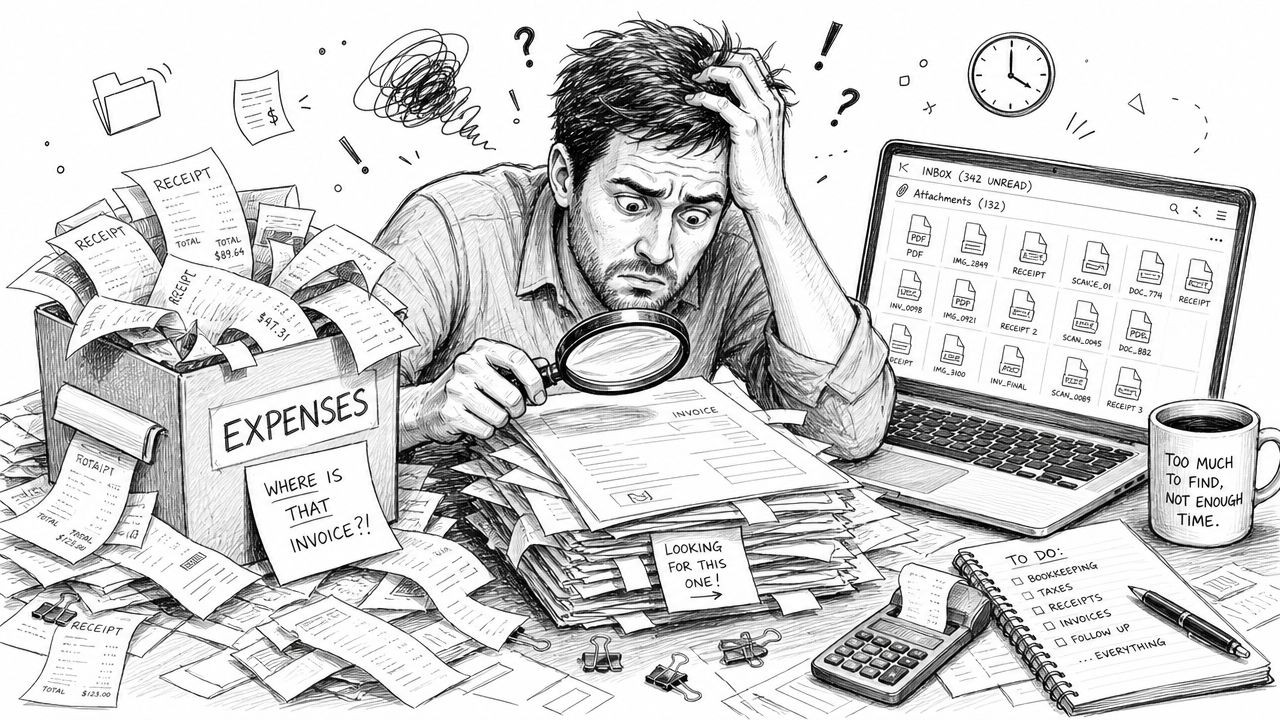
A familiar scene plays out in small businesses every month. Someone asks for a paid invoice, and the answer is a mix of “I think it's in my email,” “check the downloads folder,” and “maybe accounting has it.” That works until the business needs a clean answer fast.
Modern document management for accounting is much more than scanning receipts. It centralizes financial documents and adds workflow, version control, and audit logging so records remain traceable from intake through approval and retrieval. That's why it now sits inside financial control, compliance, and audit readiness rather than acting as a back-office filing habit.
What changes when the system is digital
Paper creates friction at every step. A printed receipt has to be saved, moved, labeled, and found again. An emailed bill has to be downloaded, renamed, and attached manually. If none of that happens consistently, the bookkeeping file loses its supporting evidence.
A digital system changes the default. Documents arrive once, get captured once, and stay available to the right people. Search becomes practical. Review becomes faster. Missing support becomes visible.
Practical rule: If a document affects the books, it needs a home before it needs a category.
For owners who still blur the line between invoices, receipts, and other accounting records, this clear guide for small business documents is a useful starting point because many filing problems begin with mislabeling the document itself.
A lot of businesses also discover that document cleanup and bookkeeping cleanup are tied together. If your books are already scattered across inboxes, spreadsheets, and apps, this overview of small business accounting online helps explain why centralized records matter beyond tax season.
What good looks like in practice
A solid system does three things well:
Captures fast: bills, receipts, and statements enter one controlled process
Stores clearly: documents can be found by vendor, client, date, type, or status
Supports proof: every posted transaction can be tied back to supporting evidence
That's the standard small businesses should aim for by Day 90. Not perfect software. A repeatable operating system.
Establishing Your Digital Intake System
Most document problems begin at the moment a file enters the business. A receipt stays in a wallet. A vendor sends a bill to the founder instead of accounting. A statement gets downloaded by one person and never shared. If intake is messy, everything after it stays messy.
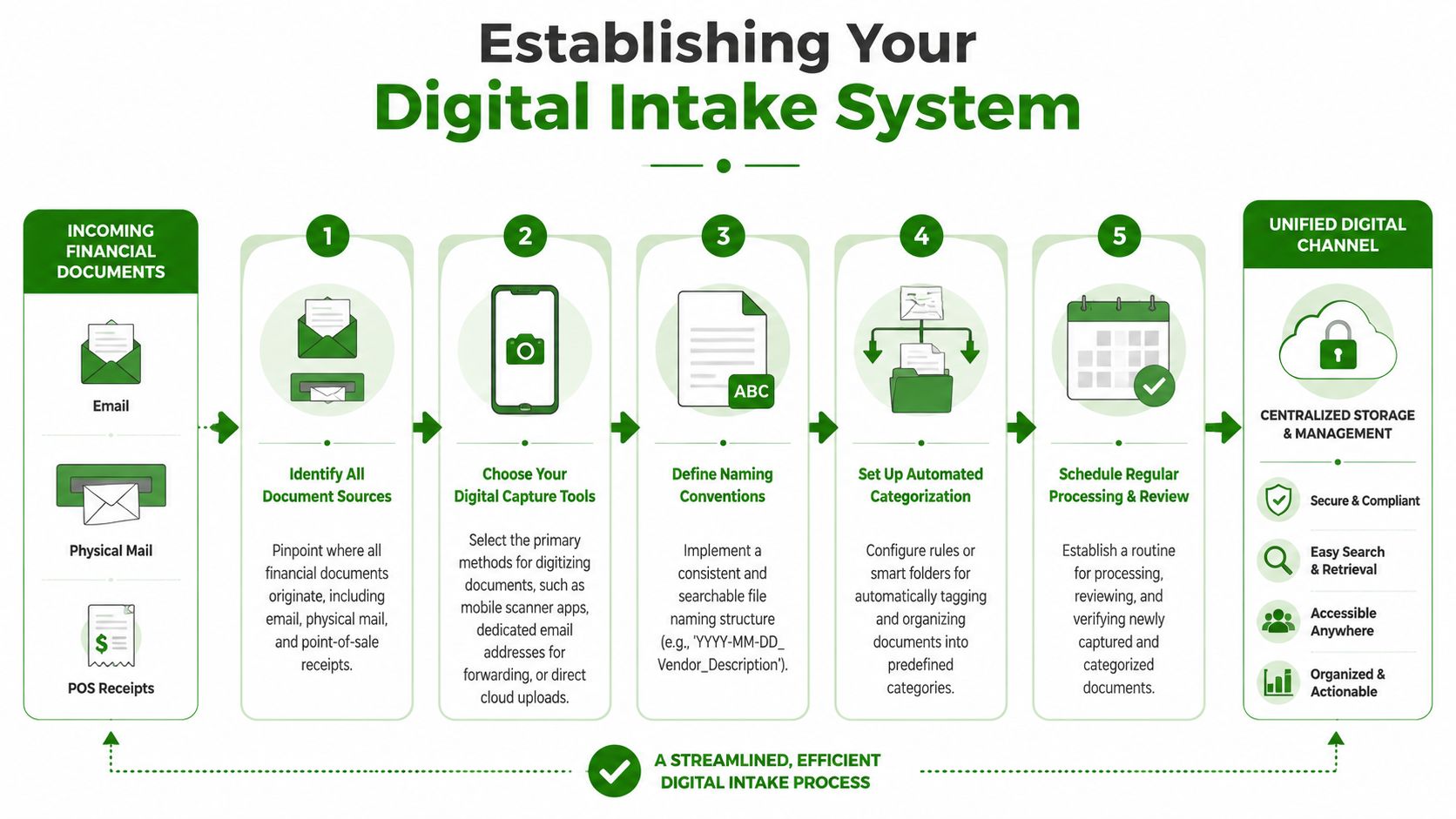
The fix is simple in principle. Give every accounting document a single intake path.
Start with one doorway
A high-control workflow uses one intake point for emails, scans, uploads, and system-generated files, then applies structured indexing after capture. In practice, that means the business should stop relying on individual habits and create one documented route for incoming records.
For most small businesses, the intake setup usually includes:
A dedicated email inbox for bills, statements, and vendor documents Examples include addresses like bills@, receipts@, or accounting@. The exact address matters less than consistency. Vendors should send documents there instead of to whoever approved the last payment.
A mobile capture app for paper receipts and on-the-go spending Dext and Hubdoc are common choices because they let staff photograph a receipt as soon as the purchase happens. The best time to capture a receipt is when the employee still knows what it was for.
A cloud upload point for PDFs and downloaded records This could be a document management platform, a secure client portal, or a connected cloud folder with rules behind it.
If people have to decide where a document belongs before they submit it, intake will fail.
That's why the first rule is submission before sorting. Let the system receive the document first. Organizing comes after.
Define intake rules your team can actually follow
Many businesses overbuild this stage. They create too many upload locations, too many exceptions, and too many naming rules on day one. Staff stop following it because the process feels like extra work.
A better Day 1 setup looks like this:
Email bills to one inbox: all vendor invoices, recurring service bills, and statements go there
Scan receipts immediately: employees use one approved app and submit on the same day if possible
Route mailed documents once: physical mail gets opened, scanned, and entered into the digital system instead of filed in paper cabinets
Collect system documents automatically: bank statements, processor reports, and platform exports should go to the same controlled repository when possible
This is also where a secure collaboration layer helps. A portal reduces the back-and-forth of “I sent it last week” because the upload path is defined and visible. For businesses working remotely or with outside bookkeeping support, a small business bookkeeping client portal can serve as that controlled handoff point.
Keep naming simple at intake
At intake, use just enough naming structure to prevent confusion. A practical pattern is date, vendor, and short description. For example, a utility bill might arrive as a PDF and get renamed with the service date and vendor. That gives the reviewer immediate context before deeper indexing happens later.
Don't ask employees to assign final accounting categories at this stage. They'll guess, and guesses create cleanup work.
Your first 30 days
The first month should focus on compliance with the intake habit, not advanced automation. Watch for the points where documents still leak out of the system.
Common leaks include:
Founder email: vendors keep sending invoices to the owner
Text messages: receipts or bills arrive by text and never get uploaded
Desktop downloads: statements get saved locally and forgotten
Paper mail: checks, notices, and paper invoices sit in a tray instead of getting scanned
If you close those gaps early, the rest of document management for accounting gets much easier.
Building a Scalable Digital Filing Cabinet
A shared drive with nested folders feels organized at first. Then the business adds more vendors, more entities, more years, and more people touching the books. Suddenly no one knows whether a document should live under “Finance,” “Vendors,” “Accounts Payable,” or the vendor's own folder.
That isn't a filing problem. It's a structural one.
Why folders break down
DocuWare's guidance is blunt about this. A high-control accounting workflow should use a single intake point and then metadata-based indexing by client, entity, year, engagement type, and document category because that avoids the scaling problems of folder trees (DocuWare on metadata-based accounting document management).
That logic applies just as well to a small business. Even if you don't serve clients like a firm does, you still need fields that describe the document rather than one location that tries to contain it.
Useful metadata fields include:
Entity or business unit
Year
Vendor or customer
Document type
Status
Related account or workflow
With metadata, one invoice can be found through several paths. Search by vendor. Search by year. Search by unpaid status. Search by customer job. A folder can only live in one place. Metadata lets a document answer more than one question.
Document Naming Convention Comparison
Attribute | Poor Practice (Folder Path) | Best Practice (Metadata Tags) |
|---|---|---|
Vendor bill | Vendor: ABC Supply; Type: Bill; Year: 2026; Month: March; Status: Pending | |
Receipt | Employee: Jake; Type: Receipt; Category: Travel; Date: captured date; Status: Submitted | |
Customer invoice copy | Customer: Client Name; Type: Sales Invoice; Date: invoice date; Status: Sent or Paid | |
Tax document | Type: W-9; Related party: vendor name; Year: current filing year; Version: current |
The left column depends on everyone choosing the same path every time. The right column depends on defined fields and consistent tags. That's far easier to maintain.
Build the filing structure around retrieval
A small business should decide what it needs to ask later, then build tags to support those questions.
Ask things like:
Can we pull every unpaid vendor bill quickly?
Can we find all payroll support for a given period?
Can we locate every document tied to one contractor?
Can we separate owner expenses from operating expenses when reviewing support?
Search should match how you think during review, not how someone guessed a folder should be named six months ago.
This also supports expense management. If your filing system is tied to how spending gets reviewed and coded, your records become more useful for bookkeeping, not just storage. This guide on how to track business expenses pairs well with a metadata approach because both depend on consistent capture and classification.
For Day 30 through Day 60, don't try to tag everything under the sun. Pick a small field set and apply it consistently. Broad coverage with clean tags beats a complicated structure no one maintains.
Integrating with QuickBooks Online and Xero
Storage alone doesn't solve much if the bookkeeping system still requires manual re-entry. The ultimate payoff comes when documents move into the accounting workflow with the right details attached.
That's where integrations with QuickBooks Online and Xero make document management for accounting operational instead of passive.
What a connected workflow looks like
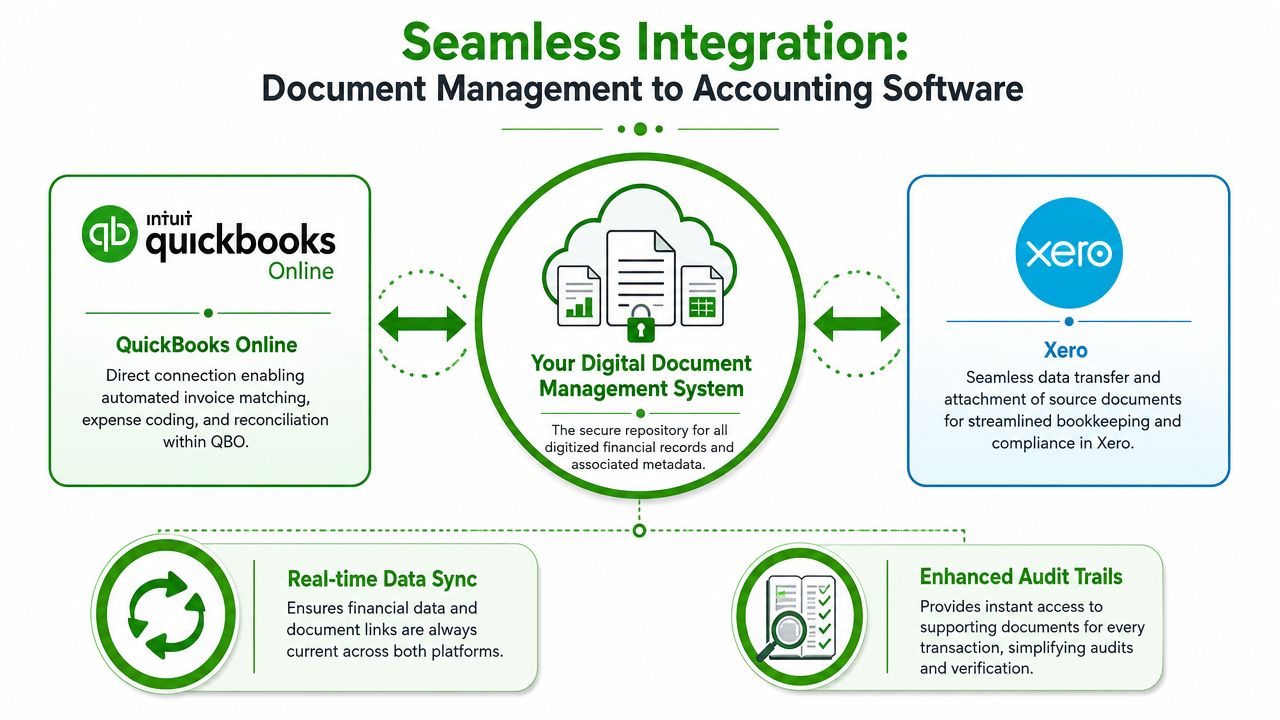
Tools such as Dext and Hubdoc can read a document with OCR, pull core details like vendor, date, and amount, and send that information into QuickBooks Online or Xero as a draft transaction for review. The supporting file stays attached, which means the ledger entry and the source document stay connected.
In practice, the flow usually works like this:
A document arrives: by email, scan, or upload
The capture tool reads it: OCR extracts the obvious fields
A draft posts for review: the bookkeeper checks coding, tax treatment, and duplicates
The document stays attached: anyone reviewing later can open the proof directly from the transaction
That last point matters. During reconciliations or cleanup work, the team doesn't have to leave the accounting platform and hunt through an unrelated storage system.
For owners deciding between accounting platforms before they build these processes, this comparison of Xero vs QuickBooks helps frame the workflow differences that affect document handling.
Where teams get stuck
Integrations don't remove judgment. They remove repetitive typing.
A few things still need human review:
Duplicate submissions: the same invoice may arrive by email and upload
Ambiguous vendors: OCR can misread names or merge similar suppliers
Split expenses: one receipt may need more than one account
Tax treatment: software can suggest, but accounting review still matters
That's why draft-first workflows are safer than auto-posting everything. A small business wants speed, but it also wants clean books.
A practical setup for the first 90 days
During the first phase, connect only the document types that create the most manual work. Usually that means vendor bills, expense receipts, and bank statements.
A workable rollout often looks like this:
Start with one source category such as vendor invoices
Map vendors and chart of accounts carefully so coding suggestions improve over time
Require attachment review before final posting
Use exceptions queues for anything unreadable, duplicated, or incomplete
Some businesses also use outside bookkeeping support to manage that review layer. Book Tech LLC is one example of a bookkeeping provider that works with QuickBooks Online and Xero while maintaining organized, tax-ready records as part of ongoing bookkeeping operations. That kind of support can be useful when the owner wants the process in place but doesn't want to review every imported bill personally.
The goal isn't touchless accounting. The goal is fewer manual steps, fewer detached documents, and cleaner proof behind each transaction.
Implementing Security Compliance and Retention
Once documents are centralized and connected to the books, the next issue is control. Financial records contain payroll details, tax IDs, banking information, customer data, and approval history. A business can't treat all users the same or keep every file forever just because cloud storage exists.
At this point, a document system stops being convenient and starts acting like governance.
Security starts with access
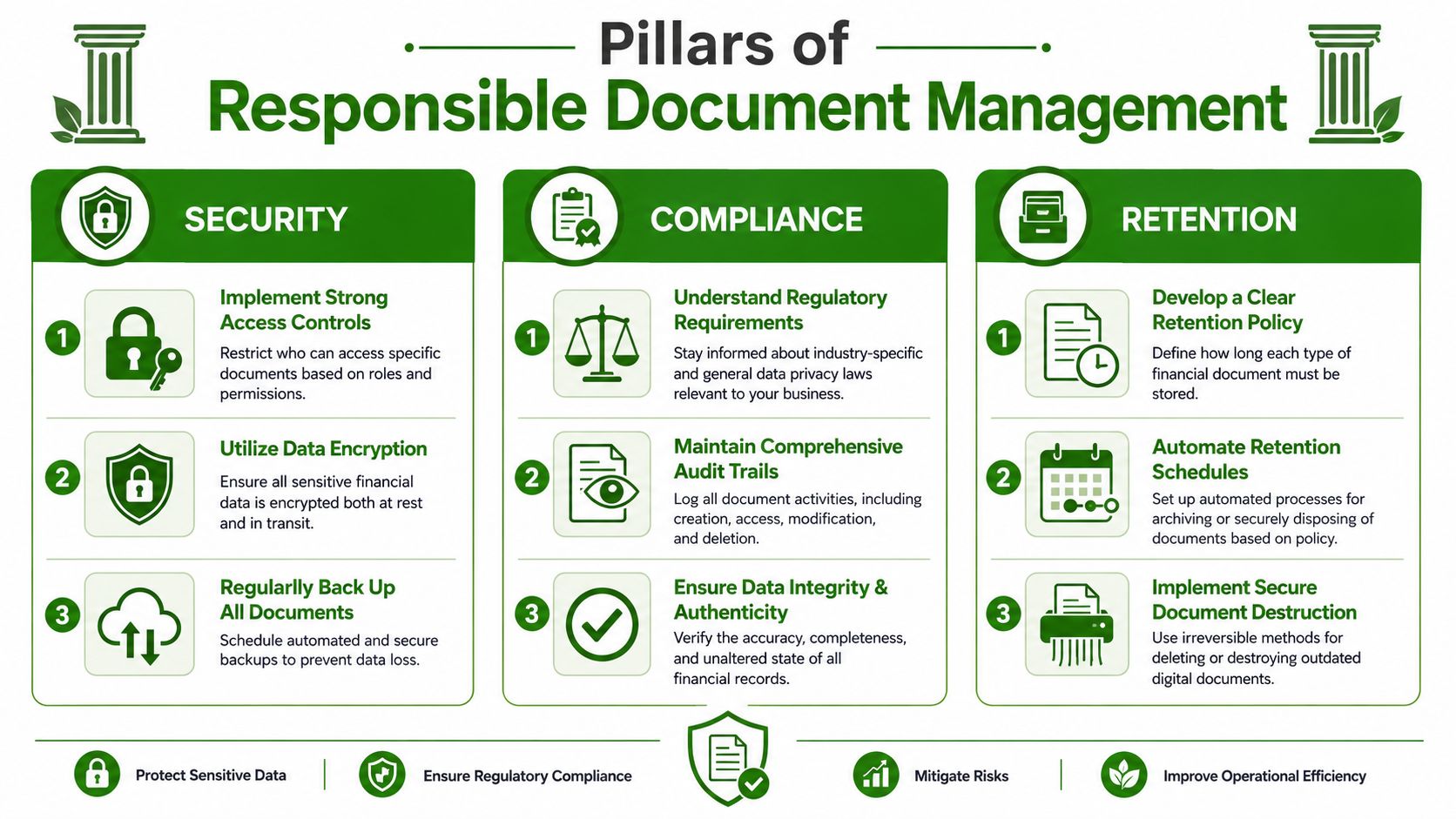
Best-practice accounting document management should automate routing, enforce granular role-based permissions, and capture audit logs for every action, including upload, view, edit, download, and delete. That creates a defensible trail for compliance reviews and reduces reliance on people remembering to document their own actions (ShareFile on accounting DMS best practices).
In plain terms, not everyone should see everything.
A practical permission model might look like this:
Owners and finance leads: broad access, including approvals and sensitive records
Bookkeepers: access to bills, receipts, statements, and transaction support
Payroll staff: payroll records only
Department managers: only the documents they need to approve
Outside tax preparers or advisors: controlled access to specific folders, tags, or reporting periods
Use least-privilege access. If someone doesn't need a document to do their job, they shouldn't have default access to it.
This is also where feature selection matters. If you're evaluating platforms, this overview of features of document management software is useful because it highlights the kinds of controls businesses should look for before they trust a system with sensitive accounting records.
Retention is a policy decision
Retention is where many cloud-first systems stay vague. General advice says to keep records secure, searchable, and auditable, but businesses still have to decide what to retain, what to redact during scanning, and what to destroy under controlled rules.
Those choices should be written down by document class. Think in categories such as:
Vendor bills and receipts
Payroll records
Tax returns and tax support
Bank and credit card statements
Contracts and signed agreements
Customer invoices and payment support
For each category, define:
Who can access it
Whether sensitive identifiers need redaction
When the retention clock starts
Who approves destruction
How deletion is logged
Good retention policy isn't digital hoarding. It's documented judgment.
If auditability is part of your process design, this explanation of an audit trail helps clarify why logs matter so much when a file is changed, accessed, or removed.
Controls that small businesses should enable early
A small business doesn't need an enterprise bureaucracy, but it does need basic safeguards from day one:
Turn on multi-factor authentication: especially for owners and finance users
Restrict downloads when possible: viewing access is often enough
Log every approval action: especially for bills, journal support, and payroll changes
Review permissions on role changes: former employees shouldn't retain access
Set retention rules by document class: don't use one blanket rule for everything
Security, compliance, and retention work best when they're treated as one operating policy rather than three unrelated tasks.
Automating Workflows and Measuring What Matters
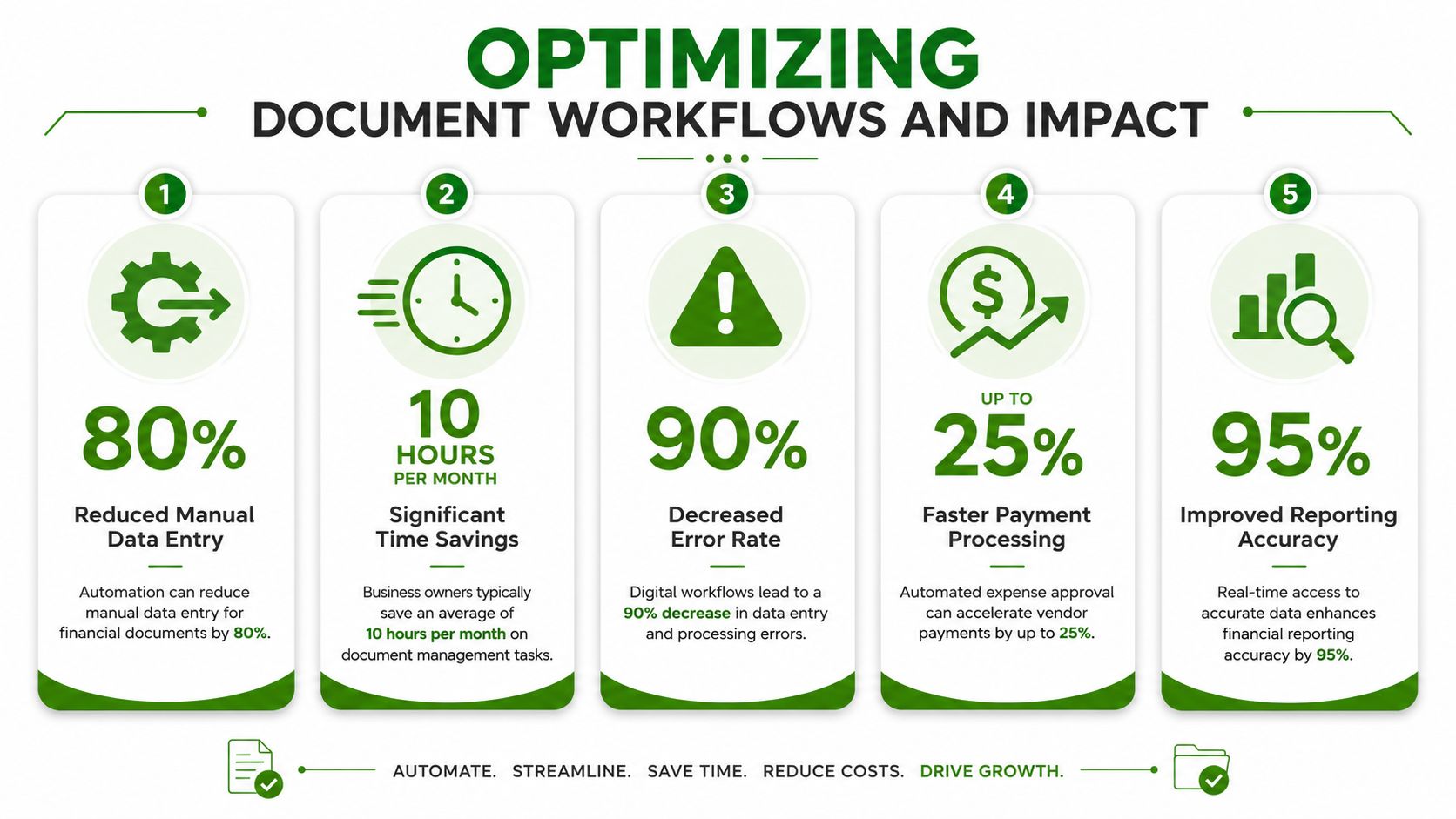
By Day 60, the business should have one intake path, a metadata structure, and a connection to the bookkeeping platform for key documents. Day 90 is where the system starts saving time consistently. That happens through workflow automation, not just better storage.
The broader market is moving in that direction. The document management automation market was valued at $6.23 billion in 2023 and is projected to reach $24.91 billion by 2032, with a 16.9% CAGR, which reflects growing business investment in workflow automation rather than simple file storage (PandaDoc on document automation growth)).
What to automate first
The best automation candidates are the repeatable ones. If the same document type follows the same decision path over and over, automate the handoff and keep the judgment where it belongs.
Strong first automations include:
Bill approvals: route incoming vendor bills to the right manager before posting or payment
Status updates: move documents from received to reviewed to approved automatically
Attachment enforcement: flag transactions that are missing support
Archive rules: move completed documents into their final state once paid or closed
Client or staff reminders: notify the next person when a document is waiting on them
A/P usually shows the value fastest because approvals tend to create the most email chasing. If that's your bottleneck, this breakdown of the accounts payable process helps identify where document workflow should sit inside the larger payables cycle.
What to measure after day 30
You don't need a huge dashboard. You do need signals that tell you whether the process is tightening or slipping.
Good operational measures include:
Time from document receipt to review
Number of transactions missing support
Count of duplicate submissions
Documents stuck in approval
Percentage of incoming documents captured through the approved intake path
Number of exceptions requiring manual follow-up
These are useful because they expose behavior, not just output. If missing attachments keep rising, the issue may be intake discipline. If approvals drag, the issue may be routing or unclear ownership.
What works and what doesn't
What works is modest automation with clear ownership. A bill comes in, gets tagged, routes to one approver, returns to accounting, and stays attached to the transaction. Everyone knows the next step.
What doesn't work is piling rules onto a shaky process. If staff still email documents randomly, no automation layer will fix that. If naming and tagging are inconsistent, reports become unreliable. If no one reviews exceptions, OCR imports move errors faster.
Automate after you standardize. Otherwise you just scale confusion.
A strong document management for accounting system should feel boring in the best way. Documents arrive where they should. Approvals leave a trail. Transactions have support. Month-end closes with fewer surprises.
If your business wants help setting up a practical document workflow inside QuickBooks Online or Xero, Book Tech LLC provides virtual bookkeeping support that includes organized, tax-ready records, monthly reconciliations, and structured document handling for small businesses across the USA.