
QuickBooks for Retail Store: Setup, Sales & Reports
You can tell a retail file is drifting before the month closes. The register totals look fine at the counter, the card terminal says money is on the way, and then the bank feed lands with a deposit that doesn't match the day's sales, includes a fee you didn't expect, and leaves you hunting for refunds, tax, or a missing batch. That's why QuickBooks for retail store matters, not because it counts SKUs, but because it has to turn messy settlement activity into books you can trust.
QuickBooks has been around retail workflows since it was first introduced in 1992, with inventory and point-of-sale features built to help merchants replace a cash register, track inventory, record sales, and manage customer information in one system (QuickBooks history). The catch is that retail today is less about a single till and more about reconciled money across cards, channels, taxes, and liabilities. A store can look profitable on paper and still be out of balance if the settlement side is set up badly.
Table of Contents
The Daily Reality Retail Owners Face With QuickBooks - Why cash-basis thinking causes the mismatch
Setting Up Your Chart of Accounts and Items for Retail - The account names that actually help at month-end
Connecting Your POS and Ecommerce Channels - What the integration should post
Sales Tax and Merchant Settlement the Right Way - The clean sequence for tax and payout entries
COGS and Inventory Costing Methods That Fit Retail - Average cost, FIFO, and the non-inventory workaround
Multi-Location, Payroll, and the Monthly Close - Payroll has to land in the right cost line
Reports to Run, Common Errors, and Habits That Keep Books Tax-Ready - Errors I see in retail files most often
The Daily Reality Retail Store Owners Face With QuickBooks
A small boutique closes on a Tuesday night. The owner counts the drawer, saves the merchant batch report, and opens QuickBooks expecting the bank deposit to match the sales total closely enough to move on. Instead, the deposit is short, a fee shows up with no obvious label, and the refund from earlier in the day is sitting somewhere else entirely.
That scene is normal in retail, and it's why so many owners feel like QuickBooks is “almost” working. The problem isn't just inventory, it's the gap between gross sales and the money that lands in the bank. Card fees, refunds, sales tax, gift cards, and store credit all break the simple idea that sales in QuickBooks should equal deposits in the bank.
Why cash-basis thinking causes the mismatch
Cash-basis thinking tells you to focus on the deposit and forget the route it took. Retail bookkeeping can't work that way if you want clean books, because a single payout may include sales from different days, minus fees, plus or minus refunds, and sometimes sales tax that should never have touched revenue in the first place. That's why the books need accrual-friendly entries, even if the owner thinks in day-end cash terms.
Practical rule: record the sale when it happens, record the settlement when the processor pays out, and use a clearing account to bridge the two.
QuickBooks retail content often starts with inventory setup, but the harder question is always the same, how do you make the deposit-to-sales gap close without distorting revenue? The answer is a bookkeeping rhythm that treats settlement as its own workflow. That means the right accounts, a clean processor clearing system, and a daily check that ties the payout back to the batch report.
Retail owners who get this right stop treating bank deposits as a mystery. They start treating them as the final line in a chain of events that QuickBooks can track, as long as it's set up to follow the money rather than guess at it.
Setting Up Your Chart of Accounts and Items for Retail
A retail chart of accounts should look like a store, not a law firm. If every sale goes into one giant income account, the P&L turns into a blur. Split sales into a few useful lines, then give the settlement side its own accounts so the processor noise doesn't contaminate revenue.
Start with Undeposited Funds, Sales by Department or Product Category, Sales Tax Payable, Merchant Processing Fees, Discounts and Refunds, Cost of Goods Sold, Inventory Asset, Inventory Shrinkage, and one clearing account per payment processor. That setup makes it possible to see what sold, what was collected, what was paid out, and what still needs a close-out entry. If you want a reference point for the structure, the account-building logic in this chart of accounts setup guide lines up with what retail files need in practice.
The account names that actually help at month-end
The point of splitting income by department isn't cosmetic. It lets you read reports without digging through transactions line by line. A boutique with apparel, accessories, and gift cards doesn't need twenty income accounts, but it does need enough separation to tell whether one product line is carrying the store while another is eating margin.
Useful split: keep sales income simple, keep fee accounts separate, and keep liabilities out of revenue.
Item setup matters just as much. Inventory items should be used for stock you buy, receive, and resell. Non-inventory items fit services, pass-through charges, or items you don't want valued on the balance sheet. If an item is taxable, mark it correctly before you start ringing sales through it, because tax mistakes get expensive fast when they're buried under weeks of sales.
Most owners misconfigure the default COGS account by letting every inventory item point to the same place without checking how the flow works on purchase orders, bills, and sales receipts. That usually creates a file that looks active but won't explain margin changes clearly. Choose your costing method carefully too. FIFO and average cost behave differently the moment your purchase prices change, and once the first purchase is recorded, that choice becomes part of the file's accounting history.
Retail Chart of Accounts Starter Set | ||
|---|---|---|
Account Name | Type | Purpose |
Undeposited Funds | Other Current Asset | Holds payment batches before bank deposit matching |
Sales by Department | Income | Separates retail lines for easier reporting |
Sales Tax Payable | Liability | Tracks tax collected but not yet remitted |
Merchant Processing Fees | Expense | Records card and processor charges cleanly |
Discounts and Refunds | Contra Income | Shows markdowns without inflating revenue |
Cost of Goods Sold | Expense | Captures product cost when items sell |
Inventory Asset | Other Current Asset | Holds stock value on the balance sheet |
Inventory Shrinkage | Expense | Isolates loss, damage, and missing stock |
Processor Clearing Account | Other Current Asset or Liability | Matches sales batches to payouts |
The right item setup does one more thing. It keeps receiving, billing, and selling tied to the same stock record so reports don't drift. If the receiving process is sloppy, the chart of accounts won't save you. It only works when the item workflow is disciplined too.
Connecting Your POS and Ecommerce Channels
A POS sync is useful, but it doesn't magically solve retail bookkeeping. What comes into QuickBooks from Square, Lightspeed, Shopify, or a similar system is usually a daily sales summary, sometimes with payment method detail and tax totals. What does not come in cleanly, unless the integration is built for it, is the full settlement story.
The deposit that lands in the bank rarely equals gross sales. Processor fees reduce the payout, refunds may hit a different batch, gift card sales create a liability instead of revenue, and tips can create extra mapping questions if the register handles them separately. That's why the bank feed should match to a clearing account, not to revenue.
What the integration should post
A clean setup posts the retail summary to the proper income, tax, and liability lines, then routes the payout through a clearing account until the bank deposit arrives. Once the deposit hits, QuickBooks matches it against that clearing account, not against the sales account. That single choice prevents revenue from being overstated and keeps card fees visible where they belong.
If you sell across ecommerce and in-store, the integration has to respect channel differences without creating duplicate sales. A useful resource on syncing retail and online bookkeeping workflows is this Shopify bookkeeping guide, especially if one store sells through both checkout counters and carts.
The two-minute check that saves hours later is simple, compare the batch total, the clearing account balance, and the bank deposit before you move on.
Some entries still need manual attention. Chargebacks, partial refunds, sales tax adjustments, and inventory received but not yet billed often fall outside the default sync logic. Those are the transactions that create month-end noise if nobody reviews them.
There's one setting worth guarding carefully, duplicate sale import toggles. If a connector is allowed to push both the sales summary and the individual sales detail twice, QuickBooks can double count revenue and inventory movement. That mistake is easy to miss in a busy store because the deposits still look plausible. The fix is to choose one source of truth for sales import and lock it down before the next close.
Retail owners who also care about local visibility can tie customer follow-up into the broader channel strategy too, including efforts to boost Google Maps ranking with reviews after purchase. That doesn't affect the books directly, but it does affect whether the same customer comes back through the same register next month.
Sales Tax and Merchant Settlement the Right Way
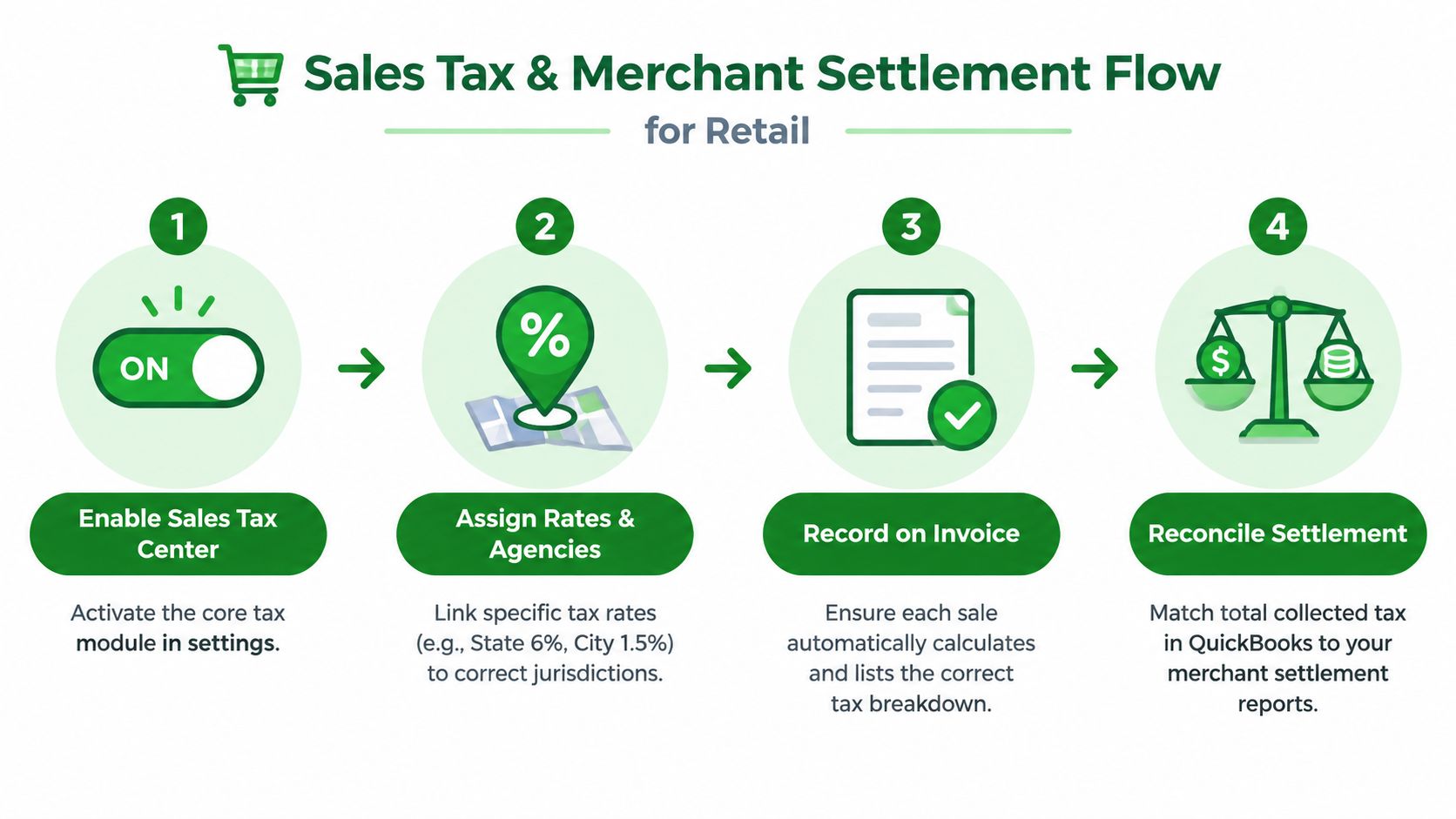
Sales tax should never be treated as an afterthought in a retail file. QuickBooks works best when the Sales Tax Center is enabled, the right tax rates are assigned to the right agencies, and each taxable sale carries the correct tax breakdown before the deposit is ever matched. If the tax piece is wrong at entry, the Tax Liability report becomes a cleanup project instead of a control report.
The clean sequence for tax and payout entries
First, enable tax. Then assign rates by jurisdiction and make sure invoices or sales receipts calculate the correct tax automatically. After that, post the full sale, not just the deposit, so sales tax sits in liability where it belongs instead of inflating revenue. For owners dealing with different jurisdiction rules, this internet sales tax guide is a helpful companion when online and in-store tax logic both show up in the same month.
Merchant settlement works the same way. Record gross sales, post processor fees to an expense account, keep gift cards in a liability account until redeemed, and apply refunds and chargebacks against the proper transaction type. Then post the net deposit to Undeposited Funds or the clearing account before it hits the bank feed. That structure lets the processor statement and the books talk to each other line for line.
Practical rule: revenue should reflect what was sold, not what the processor kept.
Processor fees belong in a separate expense account, not in Sales Discounts. If you bury them in revenue, your margin reports get distorted and it becomes harder to see how much the store sold. The same logic applies to partial refunds, which should reduce the sale without burying tax, fees, or inventory effects under one lump adjustment.
The refund and payout side gets even cleaner when you treat liabilities like liabilities. Gift cards and store credit are promises to deliver future value, not current revenue. The books need to show that clearly so the bank deposit doesn't make the sale look larger than it is.
For retailers who also sell product online or through marketplaces, the complication is often who collected the tax and when. Marketplace facilitator rules and shipping tax treatment can create entries that look odd if you only watch gross sales. The statement by statement approach is the only way the month-end close matches what the processor did, not what the register hoped would happen.
The same logic is why the resale certificate guide matters when you buy inventory for resale. If purchase-side tax is wrong, sales-side reconciliation gets harder than it should be.
COGS and Inventory Costing Methods That Fit Retail
Retail COGS gets messy the moment prices move. QuickBooks Online gives different tools depending on the plan and inventory setup, and the right choice depends on how much movement the store really has. A single boutique with stable items needs a different model than a multi-location retailer with transfers, shrinkage, and turnover.
Average cost, FIFO, and the non-inventory workaround
Average cost is often fine for a smaller store with a steady catalog. It smooths changes in purchase prices and keeps the file easier to manage, which is useful when nobody wants a heavy inventory system. FIFO is stronger when stock moves fast, especially if different purchase lots matter and shrinkage needs clearer visibility. For very simple setups, non-inventory workarounds can keep the books moving, but they sacrifice balance sheet precision.
Retail teams that need help tightening stock logic sometimes pair QuickBooks with a separate workflow layer, and a good starting point for that discipline is this inventory systems guide. The point isn't to add software for the sake of it, it's to keep receiving, selling, and counting aligned so the inventory asset doesn't drift away from reality.
If you want the accounting side mapped more cleanly, this cost of goods sold journalizing guide is the practical companion to the inventory discussion.
Rule of thumb: if the store can't keep receiving clean, don't let inventory tracking become pretend precision.
Bundles and kitted items need extra care. If you sell a gift set or bundled merchandise, the system has to know whether to break the components apart or treat the bundle as its own sellable item. Vendor credits and bill backs also have to land in the right place, or COGS will look off even when sales are right.
Inventory Costing Methods in QuickBooks Online | |||
|---|---|---|---|
Method | Available On | Best For | Main Trade-Off |
Average Cost | QuickBooks Online Plus | Smaller stores with stable SKUs | Simpler, but less precise when purchase prices swing |
FIFO | QuickBooks Online Advanced | Stores with frequent turnover or multiple lots | Better cost tracing, but more setup discipline is needed |
Non-Inventory Workflow | Basic setups or limited item tracking | Very small sellers or service-heavy retail | Easier to start, but weak on true valuation |
The biggest decision is whether to track inventory inside QuickBooks at all. If counts are loose, transfers are informal, or receiving is inconsistent, a periodic count approach with a separate app can be safer than pretending the file is more exact than it is. QuickBooks should support the process, not hide broken stock habits.
Multi-Location, Payroll, and the Monthly Close
Multi-location retail pushes QuickBooks into more than one role. It has to show which store made the sale, which location owed the tax, and which wages belonged to which cost center. Class tracking and location tracking can handle a lot of that inside QuickBooks Online, but only if the coding discipline is consistent from the first transaction.
Separate tax agencies matter too when one store sits in a different jurisdiction from another. A class-based P&L can be enough for a small chain that wants one company file, while separate books only make sense when operations have become too different to stay comparable. The issue isn't software pride, it's whether the reporting still tells the truth by location.
Payroll has to land in the right cost line
Retail payroll often includes commissions, hourly wages, and in some cases tips for food-adjacent retail. Those amounts need to flow into the right labor accounts so gross margin isn't muddied by payroll noise. If payroll syncs are sloppy, labor can end up buried in overhead and the store can't tell whether staffing decisions are helping or hurting.
The close rhythm should be boring. Reconcile bank and processor accounts first. Then tie inventory and COGS. After that, run sales tax liability and payroll reports. Only then should you look at the P&L.
Practical rule: if bank, processor, and inventory don't agree, don't trust the P&L yet.
A useful early warning is a COGS variance above two percent of sales, which usually signals a receiving mistake, a missing bill, or a sales entry problem that hasn't been caught yet. That's not a magic number, it's just a practical threshold that tells a retail bookkeeper to dig before the error spreads across another close. As soon as that variance appears, check item receipts, vendor bills, and any sales receipts that bypassed the normal flow.
The monthly close works best when it stays sequential. Payroll gets reviewed after inventory and tax because wages are usually less ambiguous than sales and stock, and the books are easier to fix before the period is locked. A retail file that closes on a predictable rhythm stays tax-ready, lender-ready, and far less stressful in January.
Reports to Run, Common Errors, and Habits That Keep Books Tax-Ready
The weekly report stack should be small and consistent. Pull Sales by Product, Inventory Valuation, COGS, Profit and Loss by Class, and the Balance Sheet. Each report should answer a specific question, not just sit in a folder waiting for month-end panic.
Sales by Product should tie back to the sales summary and then to the bank deposit. Inventory Valuation should match the Inventory Asset account on the balance sheet. COGS should make sense next to the item flow, not jump around because a receipt was entered without a cost. P&L by Class should show whether one location or department is dragging the whole business.
Errors I see in retail files most often
Duplicate tax entries after a POS sync usually come from the same sale entering QuickBooks twice, once from the summary and once from the individual transaction. Negative inventory usually means items were sold before they were received, or the receiving workflow got skipped. Processor holds show up as income when the clearing account was bypassed. COGS doubles when a sales receipt auto-creates an inventory item without a proper cost.
Common QuickBooks Retail Errors and Fixes | ||
|---|---|---|
Error | Why It Happens | One-Line Fix |
Duplicate sales-tax entries | POS sync pushes the same sale twice | Turn off the duplicate import path and void the extra entry |
Negative inventory | Items sold before receiving was recorded | Enter the vendor receipt or adjust stock before closing |
Processor holds showing as income | Deposit posted straight to revenue | Reclassify through the clearing account and match the batch |
COGS doubling | Sales receipts created inventory without cost | Review item setup and correct the default COGS mapping |
Retail cleanups get much easier when someone owns the routine. A strong cleanup process, like the kind described in this QuickBooks Online cleanup guide, focuses on fixing the structure before chasing individual errors. That matters because retail files usually break in patterns, not random one-offs.
The habit set is simple. Do daily settlement checks, weekly inventory and tax reviews, monthly account reconciliations, and quarterly coding audits on sales, fees, and liabilities. If those habits stay intact, the books stay tax-ready without turning every January into a rescue project.
If your retail books are stuck between inventory detail and settlement chaos, Book Tech LLC can clean up the structure, keep QuickBooks reconciled, and build a workflow your store can maintain. Visit Book Tech LLC to see how their QuickBooks bookkeeping support fits retail stores that need cleaner closeouts and fewer surprises at month-end.
