
Xero Import Bank Transactions: A Practical Setup Guide

You've connected a Xero bank feed, watched transactions appear, and assumed the hard part was over. Then the prior months don't tie, older activity is missing, or the same payment appears twice because a CSV import and the new feed cover overlapping dates. That's where a routine bookkeeping task becomes cleanup.
The reliable approach is to treat Xero import bank transactions as two different jobs. Use a connected feed for ongoing activity, and use a statement file for historical gaps. The dividing line matters because bank feeds commonly begin with only about 90 days of history, while Xero allows users to import up to 12 months of historic banking data through supported methods such as PDF statements from supported banks and files including OFX, QIF, QBO, QFX, and CSV, as described in Xero's bank connection guidance.
Table of Contents
Understanding How Xero Brings Bank Data In - Use the channel that fits the period
Connecting a Bank Feed the Right Way - Set the boundary before data arrives - Validate the first synchronization
Importing Older History from CSV or OFX Files - Prepare the file before uploading - CSV Import Preparation Checklist
Mapping Transactions and Building Bank Rules - Turn a confirmed pattern into a rule
Fixing the Reconciliation Errors That Trip Up Most Users - Diagnose the source before editing
A Repeatable Monthly Workflow for Clean Imports - Five checkpoints that keep the file usable
Handling Mid-Year Feed Switches and Duplicate History - Choose between matching and rebuilding - The practical decision tree
Understanding How Xero Brings Bank Data In : Xero Import Bank Transactions
Xero brings banking data into the file through two separate channels. A live bank feed connects an eligible financial institution and sends new activity into the relevant Xero bank account. A manual statement import uploads a file that already contains transaction history. They can work together, but they shouldn't be treated as interchangeable.
A feed is the right tool for current activity because it keeps delivering new lines after authorization. The history available at connection usually reaches back only about 90 days, so a new feed won't automatically rebuild older months. Xero's materials and independent guidance distinguish that recent feed window from statement imports, which are used to bring in earlier activity. StatementDesk's explanation of Xero bank statement imports makes the same operational distinction.
A file import is static. It gives you control over the period, format, and starting point, but Xero won't receive future transactions from that file unless you upload another statement. This makes CSV or OFX useful for catch-up bookkeeping, migration from another platform, a feed interruption, or a bank account that doesn't offer a dependable connection.
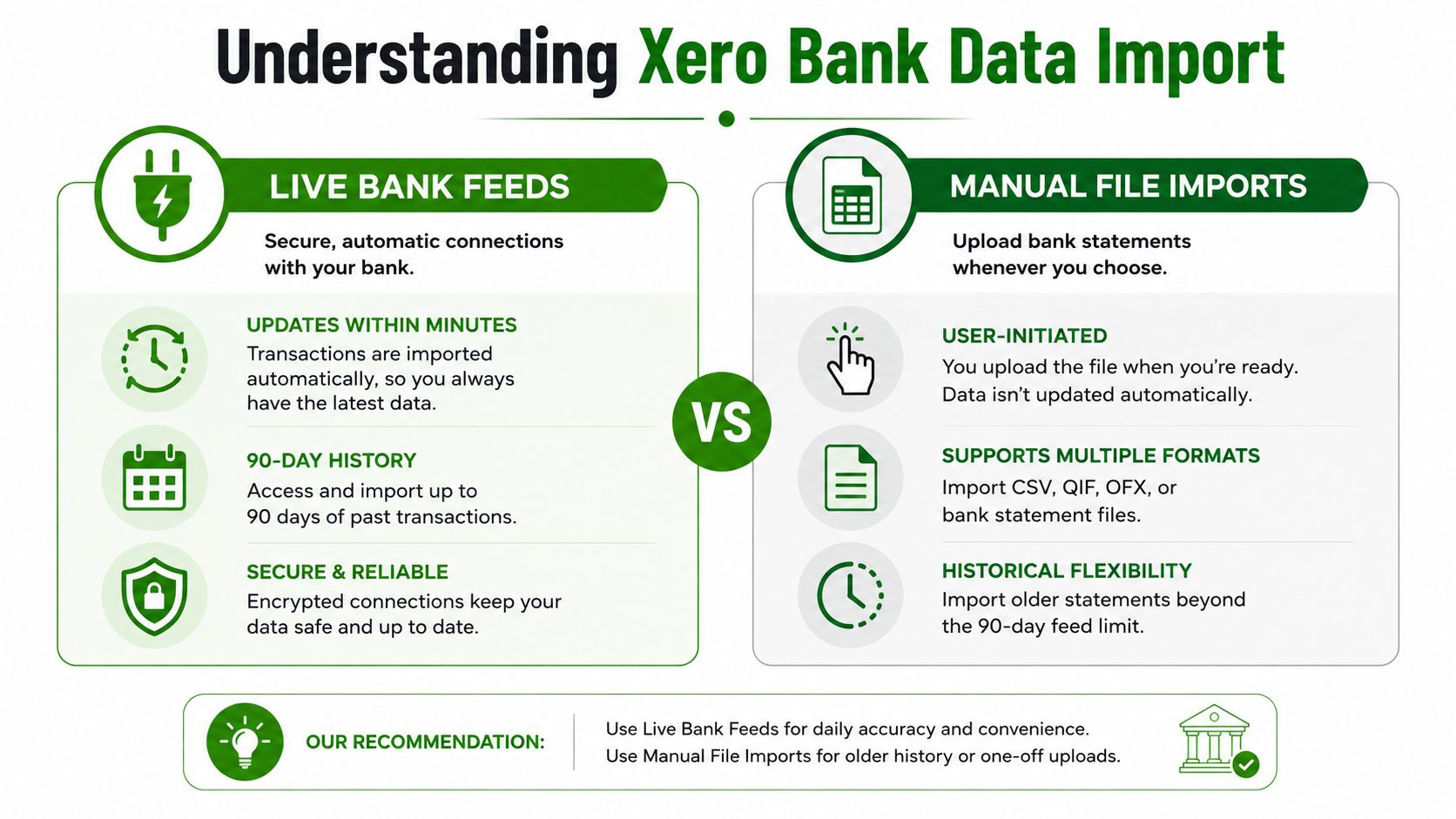
Use the channel that fits the period
For a clean setup, decide which source owns each date range before importing anything:
Current transactions: Use a live feed when the institution is supported and the connection is stable.
Older transactions: Use CSV, OFX, QIF, QBO, QFX, or an eligible PDF statement when the feed doesn't reach far enough.
Interrupted periods: Import only the missing statement period, rather than reloading the entire account.
Migration overlap: Compare the last reconciled date with the feed's start date before accepting new lines.
The most expensive mistake is importing a full historical file and then activating a feed that reaches back over the same period. If both sources create transactions, reconciliation becomes a duplicate hunt. Businesses that issue cards or manage employee spending may also benefit from reviewing how to streamline accounting with prepaid cards, particularly before deciding which payment activity belongs in the bank import workflow.
Connecting a Bank Feed the Right Way
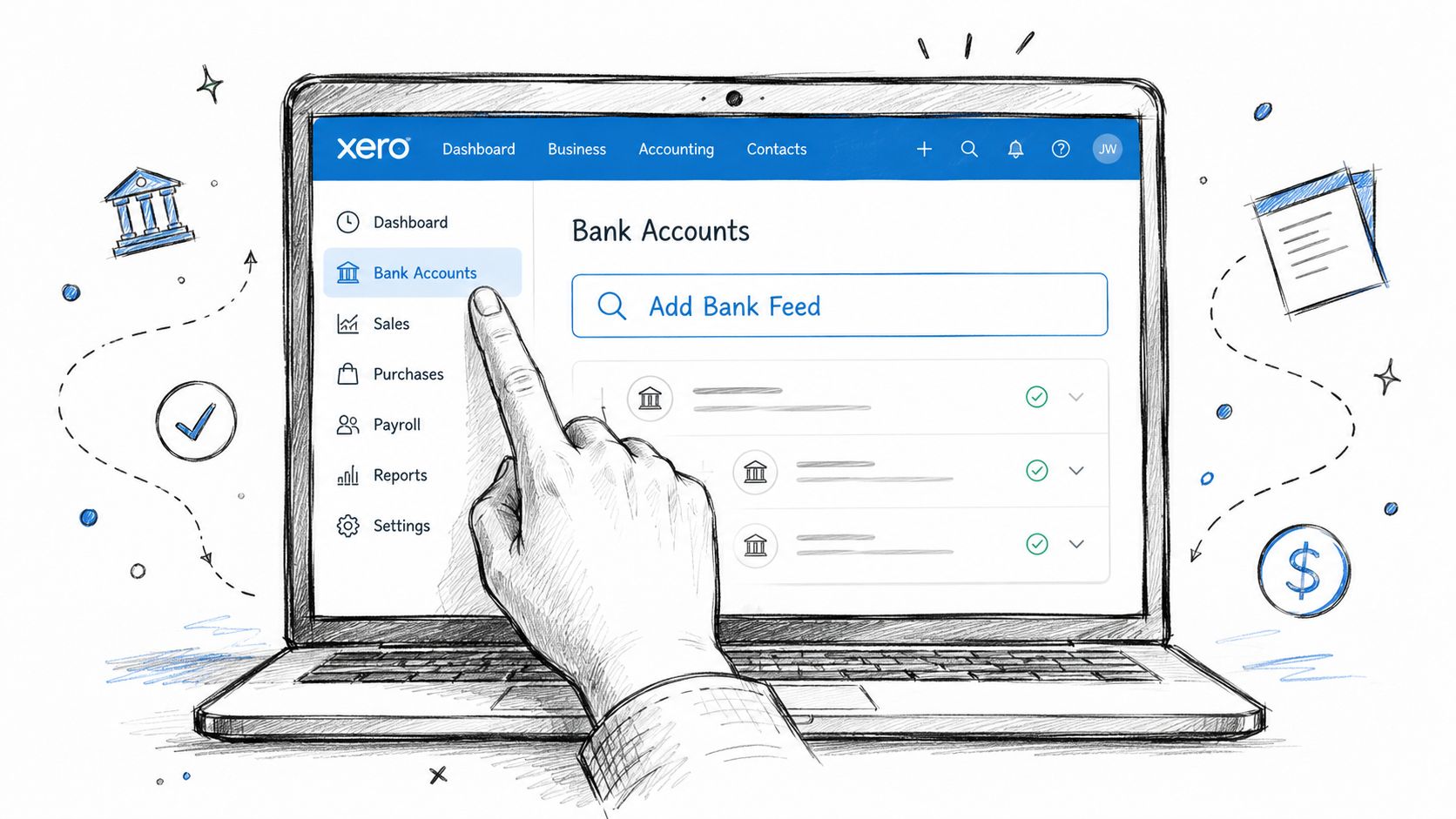
Start inside Xero at Accounting > Bank Accounts, then choose Add Bank Account. Search for the financial institution and select the correct connection. Don't authorize the first similar result without checking the institution name, account type, and account number.
Xero may present checking, savings, credit card, or PayPal accounts during setup. Choose the correct type first, then select the intended account from the drop-down. Binding a credit card or savings account to the wrong Xero ledger can send every subsequent imported line to the wrong place, and correcting the mistake later takes more than reconnecting the feed.
Set the boundary before data arrives
The start date deserves more attention than the connection button. Set it no earlier than the last period that was fully reconciled in the prior system or in the existing Xero file. That date defines the handoff between the old transaction source and the new feed.
Before accepting the first sync, compare the prior closing balance with the opening balance in Xero. The figures should agree to the cent. If they don't, stop and investigate the prior reconciliation, outstanding transactions, and any manual entries before you code new feed lines.
A connected feed doesn't guarantee complete data. Xero bank feed setup guidance from Price and Accountants emphasizes checking the feed's start date, confirming the selected accounts, and looking for missing activity that may need backfilling from a file.
Validate the first synchronization
After authorization, wait for the first group of transactions to populate. Check the earliest date, latest date, account name, payees, and whether money received and money spent appear on the correct sides of the reconciliation screen.
Some institutions deliver data quickly, while others take longer to clear or require reauthorization. If the feed is empty, don't immediately upload a broad CSV. First confirm that the authorization selected the intended account, the connection is active, and the bank has posted the transactions. Businesses needing structured support can also review Xero bookkeeping services from Book Tech USA before turning a feed problem into a larger cleanup project.
Importing Older History from CSV or OFX Files
Manual imports begin with the period the feed doesn't cover. In Accounting > Bank Accounts, open the relevant Xero bank account and select Import a Statement. Choose the statement file, then review the import preview before completing the upload.
OFX is usually preferable when the bank provides it because the file carries structured transaction information. CSV works well when OFX isn't available, but it needs more preparation. Preserve the original bank export and edit a copy, so you can compare the final file with the source statement if anything looks wrong.
Prepare the file before uploading
Xero needs transaction rows that it can interpret consistently. Use columns for the date, amount, payee, and description, and follow the import screen's mapping instructions. Save a CSV in UTF-8 when possible, remove blank rows and statement totals, and check that debit and credit signs are represented as Xero expects.
Set the import start date to the day after the last transaction already imported or reconciled. This isn't a cosmetic setting. It prevents the same statement line from entering the account twice when an existing feed or earlier file already covers part of the period.
Run a small batch before importing the entire history. Confirm the dates, descriptions, money-in and money-out direction, and statement balance. If the preview is malformed, stop there. A bad import can create a large manual cleanup job, so bookkeeping cleanup support from Book Tech USA may be appropriate when the source file is incomplete or the prior ledger is already unreliable.
CSV Import Preparation Checklist
Column | Required Format | Common Error |
|---|---|---|
Date | Consistent date values that match the Xero organization settings | Mixed date formats or ambiguous day and month order |
Amount | Values mapped correctly to money received or money spent | Reversed signs or separate debit and credit columns mapped incorrectly |
Payee | Clean transaction counterparty text | Bank codes, truncated names, or blank payees |
Description | Bank reference or useful transaction detail | Repeated headers, statement notes, or unnecessary balance rows |
After the upload, compare the first and last transaction with the source statement. Review the imported statement balance before reconciling. Xero can only match against lines that exist in the file, so a missing row won't be repaired by repeatedly clicking through the Reconcile screen.
Mapping Transactions and Building Bank Rules
Imported lines arrive on the reconciliation screen awaiting a decision. Xero may suggest a contact, account, or tax rate based on prior coding and the information in the transaction. The first batch deserves careful review because confirmed patterns can make later coding more consistent.
Suggestions can draw on contact history, an amount tolerance, keyword matches, and rule priority. These signals are useful, but they aren't a substitute for checking the underlying transaction. A payment to a payment processor may look similar to a customer receipt, and a recurring bank charge may need a different account from a one-time service fee.
Turn a confirmed pattern into a rule
Open a correctly coded transaction and choose the option to create a bank rule. For example, a condition might state that the payee contains “Stripe”. The action could allocate the line to the Sales account, apply a 30% tax rate, and assign the Stripe contact. Choose whether the rule should apply to suggested matches or to all transactions that satisfy the condition.
That example is deliberately specific. A rule that matches a recognizable payee is easier to audit than one built around a vague description such as “online payment.” Review the result on later transactions and adjust the condition if unrelated lines are being captured.
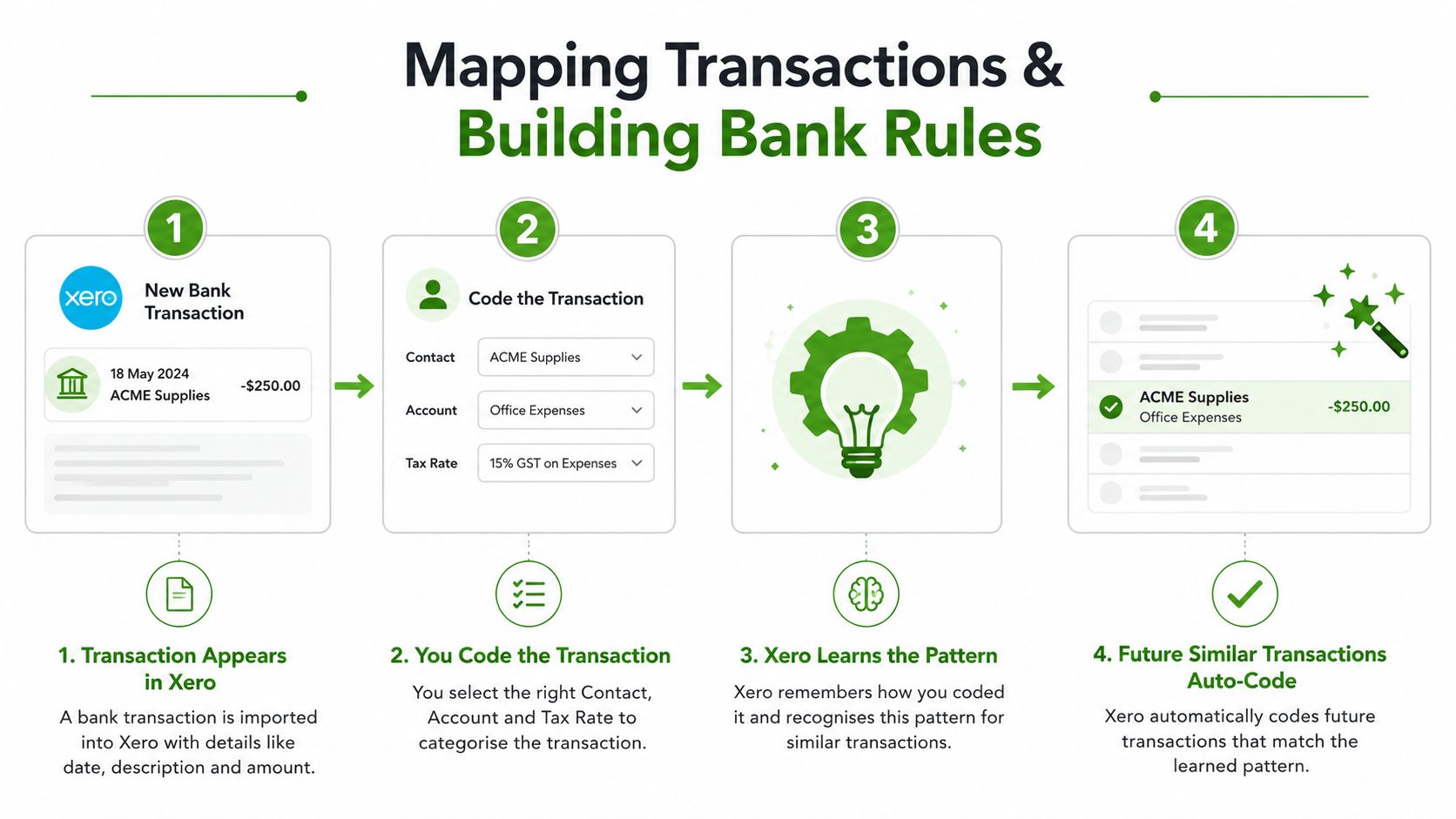
If two rules could apply, reorder them so the specific rule runs before a broad one. A generic Bank fee rule shouldn't take lines that a more precise merchant or processor rule is designed to handle.
Practical rule: Don't build a bank rule from an uncleared draft. Confirm the contact, account, tax treatment, and transaction type first, then automate the pattern.
Use Find & Match when the transaction already exists in Xero, such as an invoice payment or a manually entered bill payment. Use Create Rule when the line is a recurring bank event that needs consistent coding. For broader receivables controls, Xero accounts receivable guidance from Book Tech USA provides useful context around matching incoming money to the underlying records.
Fixing the Reconciliation Errors That Trip Up Most Users
Most reconciliation failures fall into four categories: missing lines, true duplicates, date mismatches, and opening-balance drift. The Reconcile screen shows the symptom, but the account history and original bank statement usually reveal the cause.
A missing line often appears as a difference between the bank statement and Xero's imported activity. Filter the Account Transactions report by the relevant date range, then compare the first and last transaction with the bank statement. If a period is absent, import only that gap rather than reloading a complete file.
Duplicates require stronger proof than similar descriptions. Search the imported statement and Xero account activity for overlapping dates, amounts, payees, and transaction references. If the CSV and feed both created the same line, identify which version has already been coded or reconciled before changing anything.
Diagnose the source before editing
Date mismatches can happen when the bank's posted date differs from the date displayed in the feed or file. Compare the bank statement's posted date with Xero's transaction date, especially around weekends, holidays, and delayed settlement. Don't change a date merely to make a match appear. Confirm which date the bank recognizes for the statement period.
Opening-balance drift is more fundamental. Reconcile the account to the prior period's closing balance, not to a guessed figure. Missing opening transactions, duplicate uploads, and manually entered items can all create a false variance because Xero's balance no longer represents the bank's starting point.
Error Type | Typical Cause | First Diagnostic Step | Fix |
|---|---|---|---|
Missing lines | Feed gap or incomplete file | Compare the Account Transactions report with the statement period | Import only the missing statement lines |
True duplicates | CSV and feed overlap | Search for matching dates, amounts, payees, and references | Use Find & Match or remove the duplicate source |
Date mismatch | Posted date differs from imported date | Compare bank posted dates with Xero dates | Correct the transaction only when the bank record supports it |
Opening-balance drift | Incorrect handoff or prior unreconciled activity | Compare Xero with the prior closing statement balance | Repair the underlying transactions before adjusting the balance |
The correction depends on the cause. Edit a transaction when the source line is valid but coded or dated incorrectly. Delete and re-import when the statement upload itself is wrong and can be safely replaced. A manual journal belongs only in a controlled correction process, not as a shortcut for unexplained bank differences. Xero bank reconciliation guidance from Book Tech USA is relevant when the account needs a documented review rather than another blind import.
A Repeatable Monthly Workflow for Clean Imports
Clean imports come from a cadence, not from a frantic month-end session. The feed, statement files, bank rules, and reconciliation review should each have a defined place in the month.
Five checkpoints that keep the file usable
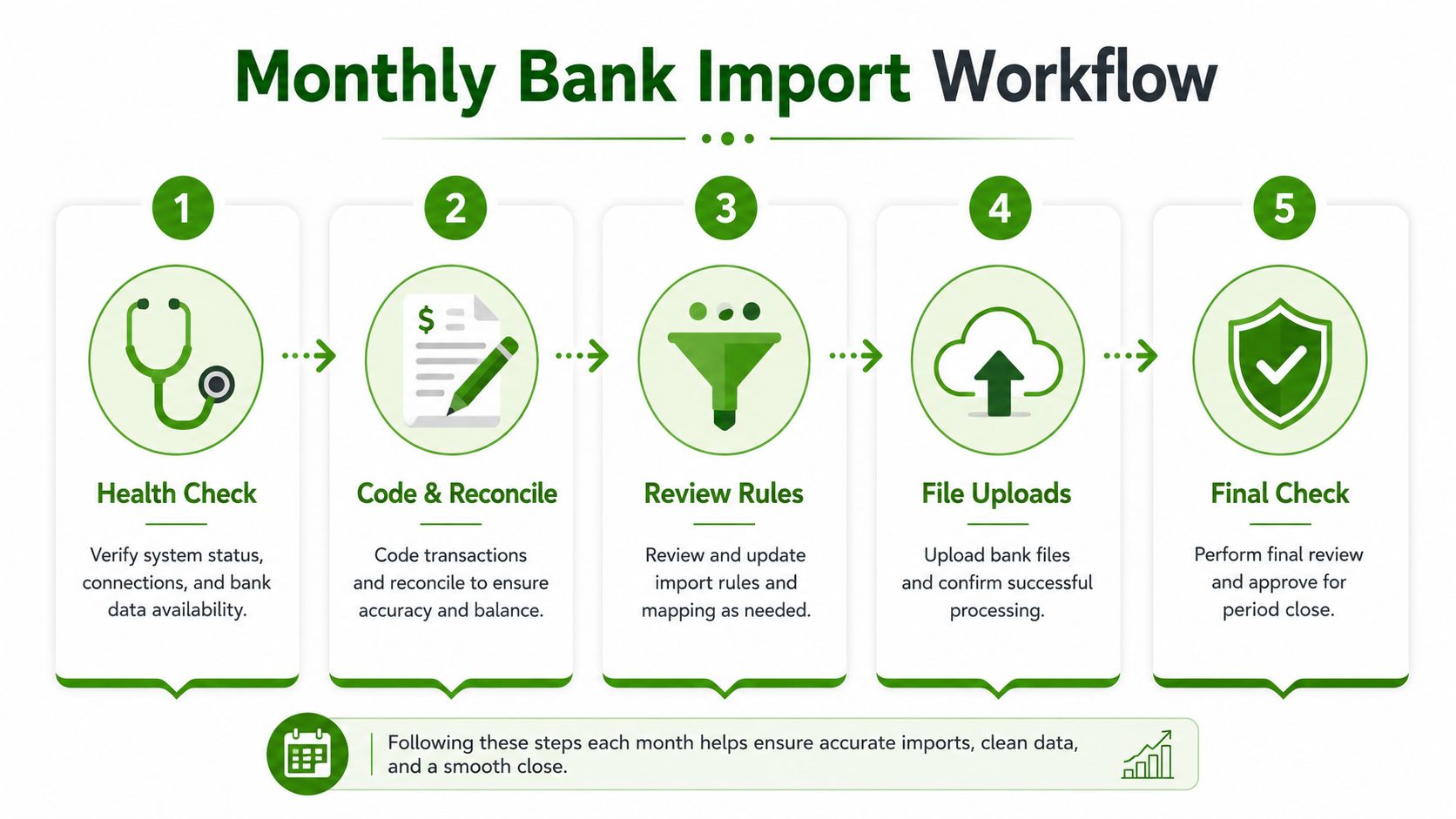
Health check: At the start of the month, confirm each feed remains connected, refresh activity appears current, and no account is paused. Review the bank account list before new transactions accumulate.
Code and reconcile: Reconcile high-volume accounts in a short daily window, and review lower-volume accounts weekly. Any line that has aged beyond a reasonable review window should be investigated rather than deferred indefinitely.
Audit rules: Mid-month, inspect newly coded payees and convert recurring items into rules only after the coding is confirmed. If a payee is repeating, build the rule before inconsistent manual coding spreads across the account.
Fill file gaps: Use a CSV or OFX statement only for missing history, feed interruptions, or periods outside the connected feed's reach. Record the date range and source file so another person can understand what was imported.
Close and protect: At month-end, reconcile to the bank statement balance and resolve every difference before the period is treated as complete. Export the Chart of Accounts and a contacts snapshot to a secured folder, and turn on two-step verification for every Xero user.
The backup habit matters because bank imports form part of the audit trail. Keep the original statement exports, the cleaned files, and a note explaining the start date used. If someone later questions a balance, you can trace the record from bank source to imported line to coded transaction.
Handling Mid-Year Feed Switches and Duplicate History
A mid-year feed switch is where many otherwise careful Xero files go wrong. The business may have imported CSV statements for earlier activity, then connected a live feed that reaches back into the same period. Because the feed commonly includes about 90 days of history while Xero supports up to 12 months of historic imports, the overlap must be managed deliberately, as outlined in Xero's guidance on bringing banking data into Xero.
The assumption to challenge is that a new feed should replace everything already in the account. It shouldn't. The correct handoff depends on whether the existing CSV transactions are accurate, coded, and reconciled.
Choose between matching and rebuilding
Find & Match is safer when the CSV history is sound. Open the apparent duplicate and compare the payee, amount, date, and statement reference. If the CSV-created transaction is already coded and reconciled, use the incoming feed line to match the existing transaction rather than creating another ledger entry.
This preserves the work already completed. It also leaves the bank statement line reconciled against the transaction that belongs in the accounts, instead of forcing you to recode a clean historical period just because the feed arrived later.
Remove and redo is better when the CSV import is unreliable. Use this route when the file contains placeholder coding, incorrect signs, duplicated rows, wrong dates, or an opening balance that doesn't tie. Remove the duplicated feed entries or incorrect imported transactions according to the cleanup path available in the account, then rebuild the period from a verified statement file and recode the lines.
Don't choose based on convenience. Use the trial balance at the cutover date as the deciding evidence. If it agrees with the bank statement and the existing period is reconciled, preserve the history and match the feed. If it doesn't, correct the source transactions before attempting to reconcile the overlap.
The cleanest migration is the one that leaves a clear handoff date, one transaction source for each period, and a statement balance another bookkeeper can verify.
The practical decision tree
Current activity: Use the live bank feed when the institution is supported and the connection remains stable.
History outside the feed window: Use CSV or OFX for older transactions and import only the uncovered period.
Repeated payees: Create bank rules after confirming the coding, especially for recurring items.
Statement close: Compare the bank statement balance with Xero and resolve every difference before closing the period.
Unreliable account: Use a file import for catch-up work, closed accounts, or cards that don't feed consistently.
Xero reported that U.S. direct bank feed coverage expanded from around 20 to more than 600 feeds in the last 12 months in its product update. That expansion can reduce the need for manual files, but it also makes mixed-source history more likely when a business has already used CSVs, an aggregator feed, or a legacy connection.
Escalate when the opening balance still won't tie after two careful attempts, when duplicate volume is too large for practical Find & Match work, when prior periods remain unreconciled, or when the business is preparing for a tax review, audit, or sale. A documented audit trail approach for bookkeeping corrections helps a second reviewer understand what changed and why.
Clean books don't require every import to be perfect on the first attempt. They require a controlled source file, a defined cutover date, verified matching, and notes that explain the decisions.
Book Tech LLC provides virtual Xero bookkeeping, catch-up and cleanup work, reconciliations, and tax-ready financial records for small businesses that need reliable control over imported bank activity. Visit Book Tech LLC to request a no-pressure consultation and discuss your feed connection, historical import, or mid-year duplicate cleanup.