
Bank Reconciliation Report QuickBooks Online: Guide
Maria owns a neighborhood bakery and reconciles her operating account in QuickBooks Online after closing for the month. The difference reaches zero, every cleared transaction appears checked, and she moves on to payroll and invoices. A few days later, her CPA asks why the prior month's check register balance doesn't match the ending balance on the financial reports.
That situation is common because a completed reconciliation can look like proof that the books are permanently clean. It isn't. The QuickBooks Online bank reconciliation report is a record of what matched the bank statement at a specific point in time. Used properly, it becomes evidence for the close, a practical troubleshooting tool, and a way to explain later changes without guessing.
Table of Contents
Why the Reconciliation Report Matters
A reconciliation isn't a ceremonial checkbox. It's the point where the entries in your accounting file face an external source of truth, the bank statement. That comparison can expose a duplicated expense, a deposit recorded twice, a bank fee that never reached QuickBooks, or a timing difference involving an outstanding check.
Maria's zero difference only proved that the selected transactions agreed with the statement she used. It didn't prove that every later edit would preserve that agreement. If someone changes a reconciled transaction after the close, the live register may no longer tell the same story as the report saved on reconciliation day.
Practical rule: Treat every completed reconciliation report as a dated close document, not as a screen you'll casually revisit later.
QuickBooks Online stores each completed reconciliation as a fixed, static reconciliation report. Intuit explains that users can retrieve it through Accounting or Reconcile, then History by account, and review or reprint it after the close. The report preserves the beginning balance, ending balance, cleared transactions, and uncleared items from the moment of reconciliation. Intuit's QuickBooks Online reconciliation guidance makes that historical function clear.
That record matters during tax preparation, owner review, and discrepancy investigations. It shows what the books said when the period was closed, rather than relying only on a current register that may have changed.
For businesses with complicated handoffs, outsourced payables, or several people approving transactions, virtual CFO support can add review discipline around reconciliations and close documentation. The underlying principle remains simple: save the report, identify who prepared it, and retain the bank statement that supports it.
A reconciliation also belongs alongside broader account-control work, including the practices described in this general ledger reconciliation guide. The report is your receipt for the bank tie-out. Without it, an unexplained change can sit for a month before anyone knows whether the issue came from the bank, the register, or a later bookkeeping edit.
Running a Bank Reconciliation in QuickBooks Online
The reconciliation screen looks like a checklist, but it's really a decision tree. The quality of the result depends less on clicking boxes and more on choosing the correct account, statement period, and source amounts.
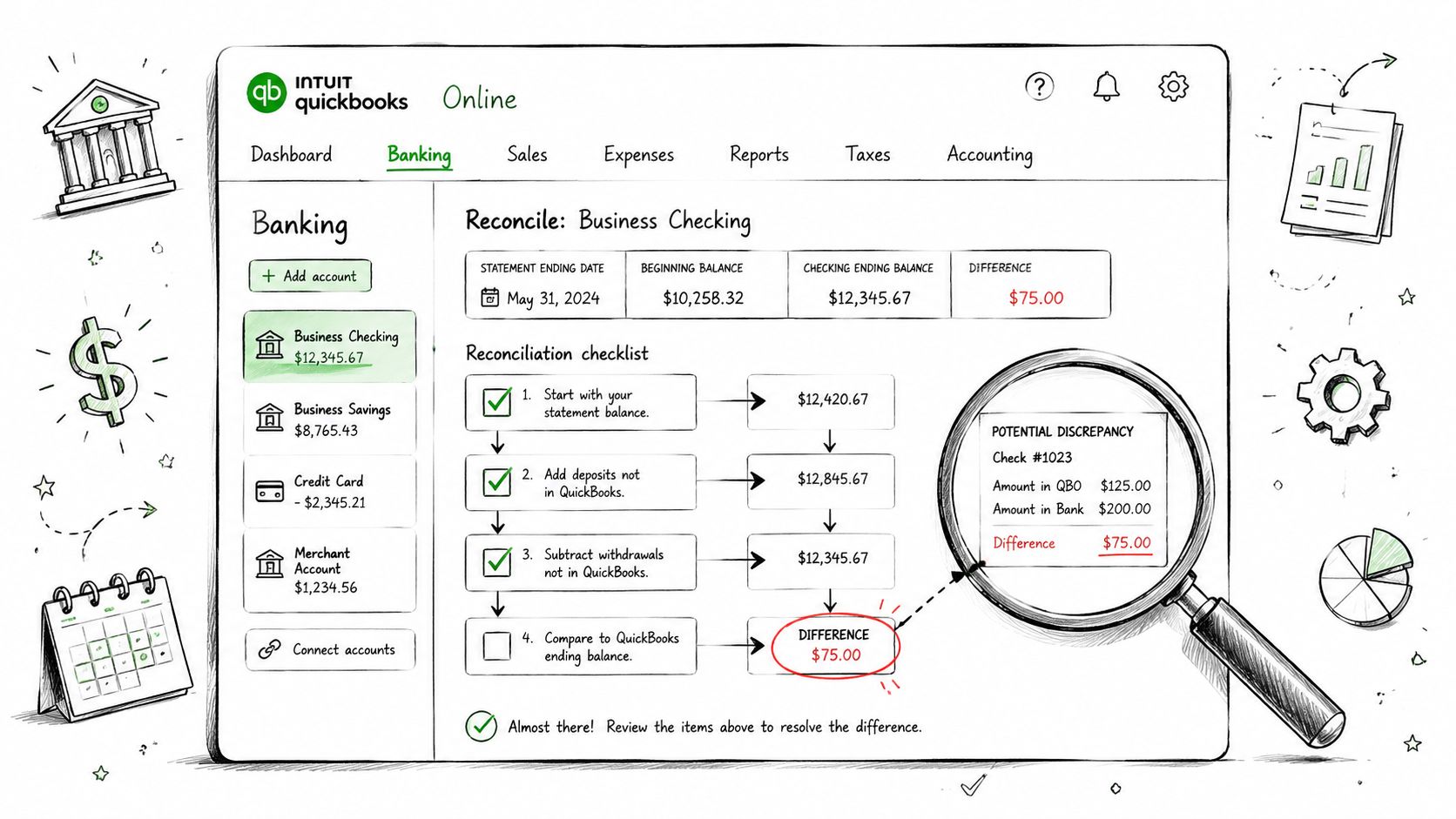
Start in QuickBooks Online and open the banking or accounting area, then choose Reconcile for the account you're closing. Select the bank account that matches the statement. Don't begin by using the current register balance, because the register includes activity that may fall outside the statement period.
Set the statement details correctly
Enter the ending date and ending balance exactly as they appear on the bank statement. The bank's period may not end on the last calendar day of the month, so use the statement header rather than assuming that “month-end” means the final day of the month.
A statement guide such as BankStatementWizard statement guide can help you identify the statement date, account details, and balance fields before you enter them into QBO. Accuracy starts with transcribing those fields directly, not eyeballing the register.
Match line by line
Work from the statement, not from memory. Mark each cleared deposit and payment only when the date and amount agree with the bank record. Two checks to the same vendor can create a convincing false match, so compare the reference number, payee, and amount together.
Watch the difference line while you work. It's the fastest accuracy test on the screen. If it stops moving as expected, pause and investigate rather than forcing the final amount.
When the difference reaches zero, finish the reconciliation. Then immediately open History by account, run the completed report, and save it with the bank statement. Don't move away assuming you can reconstruct the evidence later.
Credit card accounts need their own treatment because the payment belongs to both the bank account and the credit card account. The workflow discussed in this guide to reconciling a credit card in QuickBooks helps separate the statement balance from the bank payment so one transaction doesn't get counted twice.
Reading the Reconciliation Report
A completed report contains more information than the QBO reconciliation screen exposes at a glance. Read the header first. The account name, statement date, and preparer details establish which account and period the document covers, while the transaction detail shows exactly what was included in the close.
The cleared activity is usually organized into deposits and checks or payments. Review the transaction date, type, reference number, payee, memo, and amount. A duplicate payee and amount can signal a duplicated entry, while a vague memo makes a later explanation harder.
The balance lines tell the story
The report's lower section is where the tie-out becomes testable. Compare the statement ending balance with the cleared balance from the register and confirm that the difference is zero. The cleared balance reflects the opening balance plus cleared deposits, less cleared checks and payments.
Uncleared transactions aren't automatically errors. An outstanding check or deposit in transit can remain outside the current bank statement and roll into the next period. What matters is whether the item is pending and supported by the underlying document.
Report Section | What It Shows | What to Verify |
|---|---|---|
Header | Account, statement date, and preparer information | The account and period match the bank statement |
Cleared deposits | Deposits included in the reconciliation | Dates, amounts, and deposit support agree |
Cleared checks and payments | Payments that cleared during the statement period | Reference numbers, payees, and amounts are correct |
Uncleared transactions | Items excluded from the cleared balance | Each item is a legitimate timing difference |
Balance summary | Statement balance, cleared balance, and difference | The difference reaches zero before sign-off |
The report shouldn't replace the trial balance or financial statements. It supports them by confirming that the bank account activity feeding those reports has been tested. For the relationship between account balances and financial reporting, see what the trial balance means for your business.
The Static Snapshot Problem
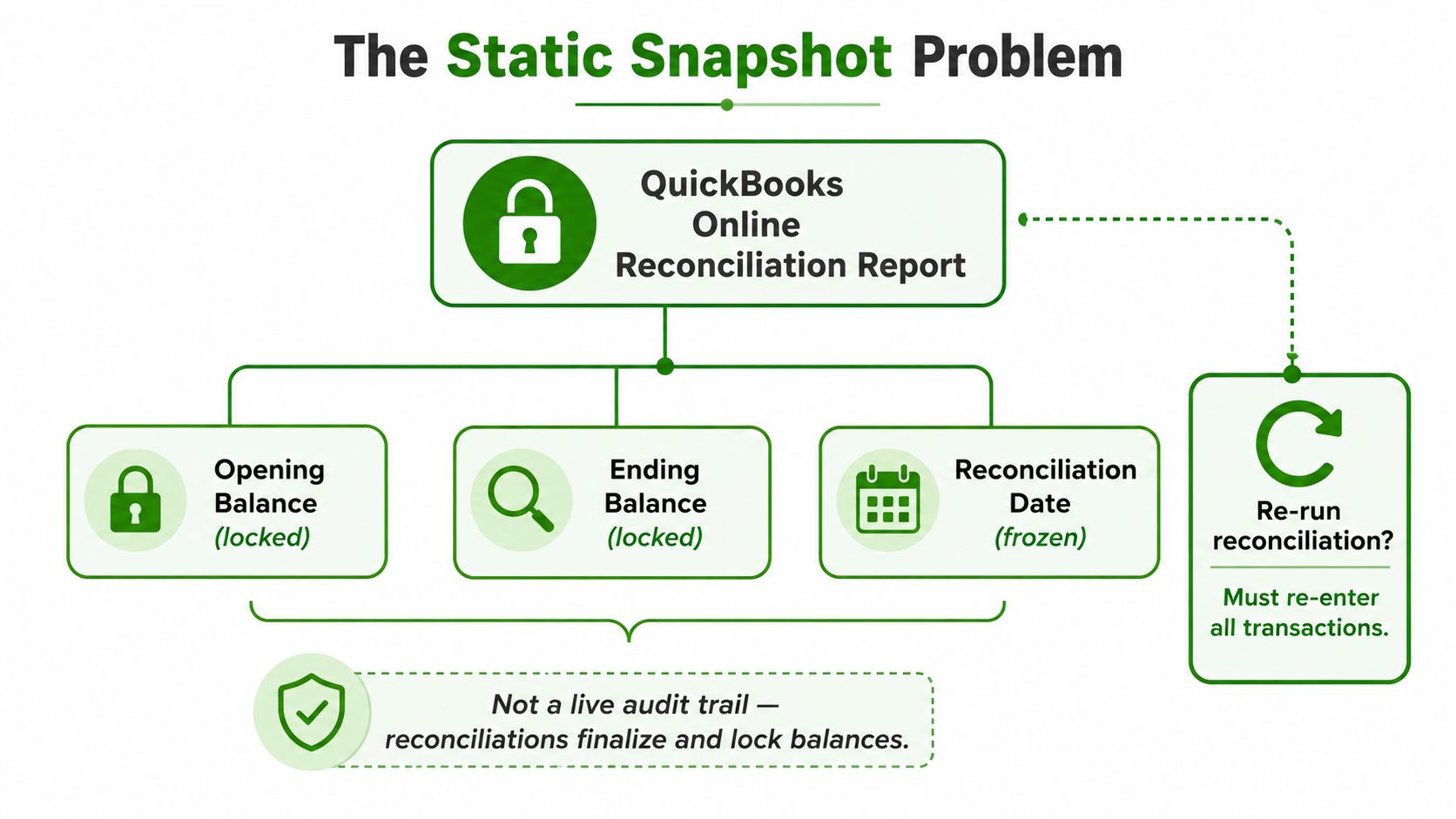
Many owners assume a completed reconciliation report behaves like a live audit trail. It doesn't. QBO preserves the beginning balance, ending balance, cleared list, uncleared list, and difference as they existed when the reconciliation finished.
If someone later edits a reconciled amount, deletes a transaction, changes its account, or moves activity between accounts, the saved report doesn't rewrite itself. The current register can drift while the historical report still shows the original zero difference. That isn't necessarily a software error. It's the consequence of comparing a frozen document with a live ledger.
How to defend a prior close
Start by rerunning the prior-period reconciliation report and comparing it with the current account activity. Look for changes in the amount, transaction status, account, or existence of entries that appeared in the original report. QBO's separate change and history views can help identify activity that occurred after the close, but the original report remains the evidence of what was reconciled at the time.
The response depends on the cause:
Source entry is wrong: Correct the transaction, document the reason, and assess whether the affected period needs to be reopened.
Material change affects the prior close: Undo the reconciliation, fix the source transaction, and reconcile the period again using the bank statement.
Change is valid but the period should stay closed: Record the explanation in your close file and use an appropriate adjusting entry when your accounting policy supports it.
Unclear history: Compare the report, audit history, bank statement, and supporting document before changing anything.
Don't delete a transaction merely to make the live register agree. A clean audit trail explains the difference instead of hiding it. For broader cleanup work, this QuickBooks Online cleanup guide is a useful reference point.
A Worked Example Chasing a Small Difference
A coffee shop owner finishes a January reconciliation and sees a $47.86 difference. The amount is small enough to tempt a forced adjustment, but every unexplained difference deserves a source-level explanation.
The first step is to return to the bank statement and isolate the period. Sort the cleared QBO transactions by date, then compare deposits and payments line by line. Look for bank-only activity first, including fees, interest, returned items, or processor adjustments.

The owner finds no missing check, but a bank fee appears on the statement without a matching QBO entry. Next, the bookkeeper checks the bank feed for duplicates. A manually entered deposit and a downloaded feed transaction can represent the same deposit, especially when a processor groups several sales into one batch.
The investigation continues in a deliberate order:
Bank-only items: Search for fees, interest, returned ACH activity, and processor deductions that never entered the register.
Duplicate entries: Compare manually entered deposits with imported feed transactions before adding anything new.
Amount differences: Verify that a cleared check wasn't recorded for a different amount than the bank paid.
Transfers: Check both accounts when a transfer appears to clear in one account but is coded as income or expense in the other.
Sales tax adjustments: Review the source report and entry when a small rounding difference remains after the main issue is fixed.
In this case, the large portion of the gap traces to a returned ACH fee. The remaining $0.86 comes from a sales tax adjustment that was recorded with a rounding difference. The bookkeeper posts the missing bank-only item to the correct expense account, corrects the tax entry with supporting documentation, and reruns the reconciliation until the difference reaches zero.
The final step is documentation. Save the corrected report, retain the statement, and note why the adjustment was made. If an adjusting entry is appropriate, use a documented method such as those shown in these adjusting entry examples, rather than posting an unexplained plug.
For a visual walkthrough of the diagnostic mindset, review the following example:
Common Reconciliation Issues and Fixes
Most QBO reconciliation problems fall into a handful of patterns. The fix isn't always to add a journal entry. First identify whether the problem is duplication, timing, omission, misclassification, or a processor settlement issue.
Duplicates and timing differences
A duplicate often appears when someone manually records a transaction and later accepts the same item from the bank feed. In the Bank Transactions area, compare the entries and match the downloaded item to the existing transaction instead of adding a second one. If both already exist, exclude or remove the duplicate according to your review process, then confirm that the remaining transaction has the correct reconciliation status.
Outstanding checks and deposits in transit are different. They can remain uncleared because the bank hasn't processed them by the statement date. Don't delete them to force a match. Confirm that the item belongs to the period and carry it forward for review during the next reconciliation.
Bank-only activity and account mix-ups
Bank fees and interest need to enter the correct bank account before they can clear. Use the bank feed or transaction-entry tools to code the item, then return to the reconciliation screen. A journal entry can be suitable for a bank-only item when the account treatment is clear and your bookkeeping policy supports it, but a vague adjustment account only hides the source.
Credit card payments create another common error. The payment should reduce the bank account and the credit card liability, not become a new expense. Payment processors create similar confusion because PayPal and Stripe may deposit a net batch after fees, refunds, and chargebacks. Reconcile the payout to the processor detail, then tie the net amount to the bank deposit.
What works: Trace the difference to a bank line, register entry, or source document.What doesn't: Post a plug to miscellaneous expense because the reconciliation screen needs to reach zero.
Use Locate when the amount matches but the date differs. Banks and processors can post activity on different dates, so an amount-only search can find the right transaction while still requiring a date and source-document review. For operators handling restaurant deposits and delivery-platform settlements, these restaurant finance tools from OrderOut provide additional context for separating sales activity from payout reconciliation.
Symptom | Likely Cause | Where to Fix in QBO |
|---|---|---|
Same payment appears twice | Manual entry and bank-feed acceptance both posted | Bank Transactions and the account register |
Check remains uncleared | Timing difference | Reconciliation screen and next statement |
Fee appears on statement only | Bank-only activity was omitted | Bank Transactions or transaction-entry tools |
Payment changes both expense and card balance | Credit card payment was misclassified | Credit card account and bank account |
Net processor deposit doesn't match sales | Fees, refunds, or chargebacks are outside the payout entry | Processor detail, Bank Transactions, and the register |
Amount matches but date doesn't | Posting-date difference | Locate in the reconciliation screen |
Closing the Books in 7 to 10 Days
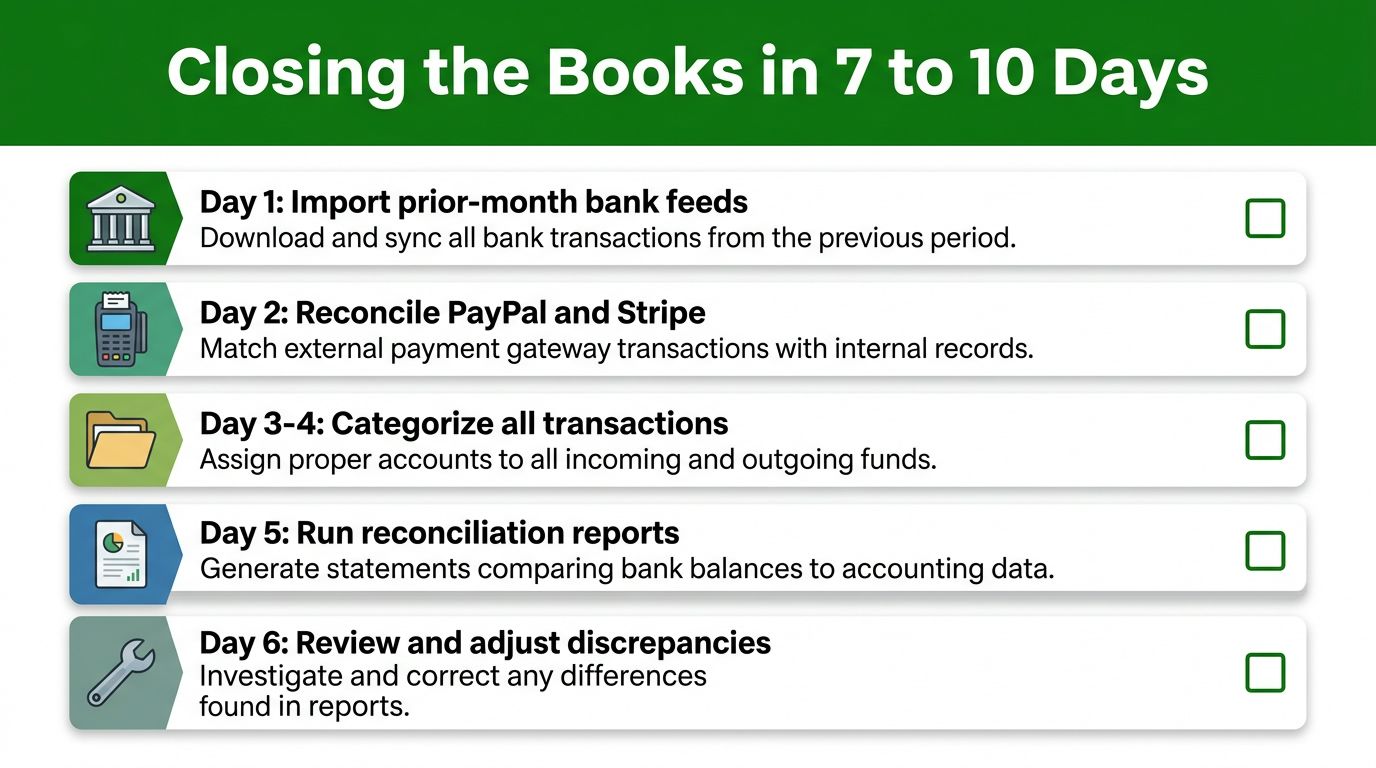
A fast close comes from assigning each task to a day, not from rushing through reconciliation at the end of the month. The following rhythm gives an owner or bookkeeper a practical handoff sequence and keeps bank, card, and processor activity moving toward a documented close.
A workable close rhythm
Day 1, gather source records: Import the prior-period bank activity and pull PayPal or Stripe payout details. Confirm that the statement dates are available for every account.
Day 2, clean the feed: Run matching rules, review accepted transactions, and sweep for duplicates or uncategorized items.
Day 3, reconcile cards: Use the credit card statement ending balance, not the current card balance, and investigate payments that may have been posted to the wrong side of the transfer.
Day 4, review open items: Check uncategorized transactions, recurring entries, outstanding checks, and deposits in transit.
Day 5, escalate exceptions: Ask the bank or processor about unexplained fees, returned items, settlement timing, or missing deposits.
Day 6, review reports: Have the owner review the profit and loss and balance sheet after the account reconciliations are complete.
Day 7, close the period: Save the reconciliation reports and supporting statements, then apply a period lock or documented soft close.
Days 8 to 10, use the buffer: Resolve late vendor statements, payroll corrections, and other source records that arrived after the main review.
Weekly reconciliation makes the month-end session much easier because errors surface close to the transaction date. High-volume businesses may reconcile weekly or daily, while monthly reconciliation is a common minimum standard. The Washington State Auditor's bank reconciliation guidance also emphasizes investigating differences and maintaining review controls, including separation between preparation and approval.
If reconciliations regularly run past the close window, the bottleneck usually isn't the final reconciliation screen. It's weak matching rules, inconsistent categorization, missing processor reports, or unresolved exceptions allowed to accumulate. Fix those habits during the month, and the saved report becomes the final control rather than the place where every bookkeeping problem appears at once.
Book Tech LLC can manage recurring QuickBooks Online reconciliations, save the supporting reports, and investigate differences before they disrupt your close. If you want a documented 7 to 10 day bookkeeping workflow with tax-ready financial statements, visit Book Tech LLC to discuss your accounts and reconciliation needs.